

How to Use the Edit Feature
Sometimes you generate the perfect coloring page, or upload a great photo, but one small detail isn't quite right. Instead of starting over, you can use the Edit tool to remove distractions or add creative elements to your canvas.
(Note: The Edit feature consumes 3 credits per use and is available exclusively to ColorPrompt subscribers).

1. Upload Your Inspiration
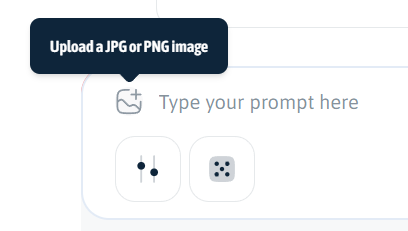
Instead of typing a prompt to generate from scratch, look for the Upload icon (the mountain and sun symbol) next to the prompt box. Click it to upload the photo you want to turn into a coloring page.
2. Clean Up the Details
For a coloring page, you often want clear, simple features (like removing glasses so you can color the eyes).
Click the "Edit" button located below the image.
Type your specific instruction in the prompt box, such as: "Add glasses".
The AI will redraw that specific detail, giving you a clean, open design that is much more fun to color.

3. Add a Creative Background
A plain background isn't very exciting to color. You can easily turn it into a full scene!
The Action: Paint over the background area behind your subject.
The Prompt: Type your new setting, such as: "Add soft, fluffy clouds in the background".
The AI will seamlessly add the new elements, turning a boring snapshot into a whimsical scene ready for your crayons.

✨ Now go try it out!